
The Salesforce Certified Tableau Data Analyst (Analytics-DA-201)
Passing Salesforce Tableau Data Analyst exam ensures for the successful candidate a powerful array of professional and personal benefits. The first and the foremost benefit comes with a global recognition that validates your knowledge and skills, making possible your entry into any organization of your choice.


Analytics-DA-201 Exam Dumps
- Exam Code: Analytics-DA-201
- Vendor: Salesforce
- Certifications: Tableau Data Analyst
- Exam Name: Salesforce Certified Tableau Data Analyst
Why CertAchieve is Better than Standard Analytics-DA-201 Dumps
In 2026, Salesforce uses variable topologies. Basic dumps will fail you.
| Quality Standard | Generic Dump Sites | CertAchieve Premium Prep |
|---|---|---|
| Technical Explanation | None (Answer Key Only) | Step-by-Step Expert Rationales |
| Syllabus Coverage | Often Outdated (v1.0) | 2026 Updated (Latest Syllabus) |
| Scenario Mastery | Blind Memorization | Conceptual Logic & Troubleshooting |
| Instructor Access | No Post-Sale Support | 24/7 Professional Help |
Customers Passed Exams
10
Success backed by proven exam prep tools
Questions Came Word for Word
93%
Real exam match rate reported by verified users
Average Score in Real Testing Centre
95%
Consistently high performance across certifications
Study Time Saved With CertAchieve
60%
Efficient prep that reduces study hours significantly
Salesforce Analytics-DA-201 Exam Domains Q&A
Certified instructors verify every question for 100% accuracy, providing detailed, step-by-step explanations for each.
Question 1
Salesforce Analytics-DA-201
QUESTION DESCRIPTION:
What is an ideal use case for using a Gantt chart in Tableau?
Correct Answer & Rationale:
Answer: C
Explanation:
A Gantt chart is specifically designed to represent the duration of events or activities along a time axis. Each Gantt mark normally begins at a date or time position, while the mark’s size represents the duration of the activity. This makes the visualization highly appropriate for project schedules, where analysts need to see when individual tasks start and how long each task lasts. Tableau’s official documentation describes Gantt charts as a method for showing event or activity duration and demonstrates their use for elapsed time between dates. Regional performance comparison would normally use bars, maps, or other comparative visualizations. Correlation analysis is better suited to a scatter plot, while long-term budget trends are normally displayed with line charts. Therefore, C is the appropriate Gantt chart use case.
Question 2
Salesforce Analytics-DA-201
QUESTION DESCRIPTION:
You have the following dashboard.
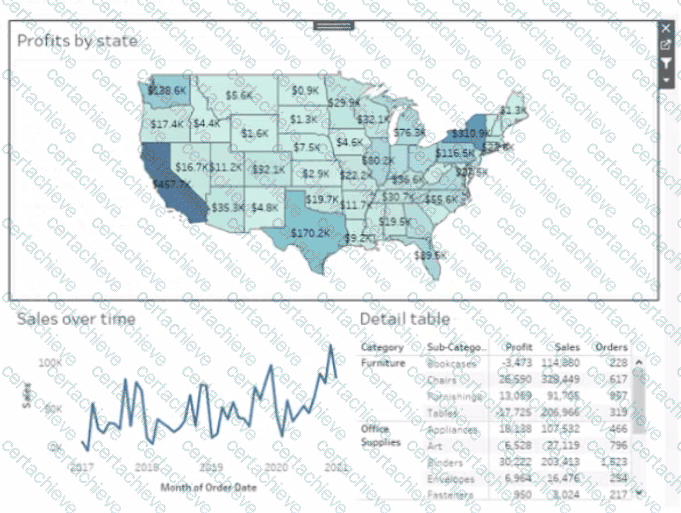
Currently the map is used as a filter that affects the data on the otter sheets of the dashboard
You need to configure the dashboard to ensure that selecting a data point on the map only tillers the Detail table
What should you do?
Correct Answer & Rationale:
Answer: A
Explanation:
To configure the dashboard to ensure that selecting a data point on the map only filters the Detail table, you should select Ignore Actions from the context menu of Sales over time. Ignore Actions is a feature that allows you to exclude a sheet from being affected by any actions on the dashboard, such as filters or highlights. You can select Ignore Actions by right-clicking on a sheet on the dashboard and selecting Ignore Actions from the menu.
In this case, you want to exclude Sales over time from being filtered by the map, so you should select Ignore Actions from its context menu. This will make Sales over time ignore any selections on the map and show all values. The Detail table will still be filtered by the map as usual.
The other options are not correct for this scenario. Removing Dashboard Item will delete Sales over time from the dashboard, which is not what you want. Deselecting Use as Filter will disable the map as a filter for any sheet on the dashboard, which is not what you want. Selecting Deselect will clear any selections on the map, but it will not prevent Sales over time from being filtered by future selections. References: https://help.tableau.com/current/pro/desktop/en-us/actions.htm https://help.tableau.com/current/pro/desktop/en-us/actions_ignore.htm
On a Tableau dashboard, when a map is used as a filter, it affects all other sheets in the dashboard by default. To restrict the filter action to only affect the Detail table and not the ' Sales over time ' chart, you would modify the action settings. By selecting " Ignore Actions " from the context menu of the ' Sales over time ' chart, it will no longer respond to the filtering action initiated by selecting data points on the map.
Question 3
Salesforce Analytics-DA-201
QUESTION DESCRIPTION:
A Data Analyst has the following chart.
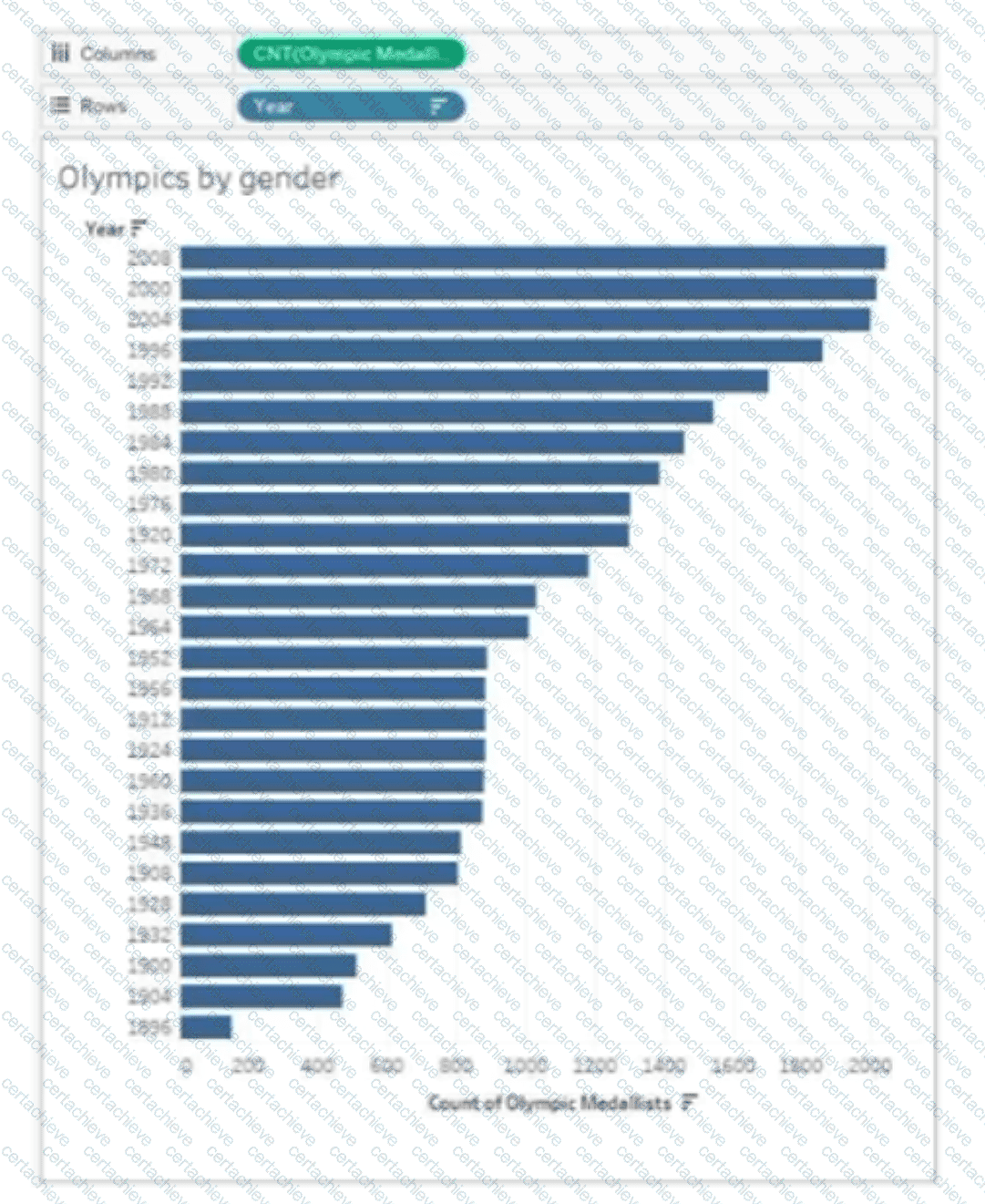
The analyst needs the top 10 values to appear in a different color. The top 10 values must be colored dynamically.
What should the analyst do?
Correct Answer & Rationale:
Answer: B
Explanation:
A dynamic Top 10 requirement should be implemented with a dynamic set, not with a manual selection or static group. The analyst can create a set on the Year dimension, configure its Top tab to retain the top 10 members according to the relevant medal-count measure, and then place the resulting IN/OUT set on Color on the Marks card. Tableau recalculates the set as the underlying data or ranking changes, so whichever ten years currently meet the Top 10 condition receive one color and the remaining values receive another. Manually selecting ten bars or manually creating a set from currently selected bars produces a fixed membership. A group is also static unless manually changed. Tableau’s Top N guidance demonstrates dragging a Top N set to Color to distinguish the dynamic subset.
Question 4
Salesforce Analytics-DA-201
QUESTION DESCRIPTION:
You have two tables named Employeelnfo and DepartmentInfo. Employeelnfo contains four fields named Full Name, Department ID, Start Date, and Salary.
DepartmentInfo contains four fields named Department Name, Size, Department ID, and VP.
You want to combine the tables to meet the following requirements:
. Each record in Employeelnfo must be retained in the combined table.
. The records must contain the Department Name, Size, and VP fields.
· Every record must have a full name.
Which type of join should you use?
Correct Answer & Rationale:
Answer: B
Explanation:
To combine the tables and meet the requirements, you should use a left join. A left join will keep all the records from the left table (Employeelnfo) and match them with the records from the right table (DepartmentInfo) based on the common field (Department ID). If there is no matching record in the right table, the fields from the right table will be null. This way, you will retain all the records from Employeelnfo, and also include the Department Name, Size, and VP fields from DepartmentInfo. Every record will have a full name because it is a field from the left table. A left join will look like this:
[References:, Join Your Data - Tableau, Join Types in Tableau, , ]
Question 5
Salesforce Analytics-DA-201
QUESTION DESCRIPTION:
A Data Analyst needs to add a custom color palette to Tableau Desktop for use across multiple workbooks. The palette must reflect the company ' s branding.
What should the analyst do?
Correct Answer & Rationale:
Answer: D
Explanation:
A reusable custom color palette is defined through Tableau’s preferences configuration rather than by formatting a single worksheet. The Preferences.tps file resides in My Tableau Repository and uses XML tags to define named color palettes and their color values. After the palette is added and Tableau Desktop is restarted, the palette becomes available from the color-palette selector and can be used across workbooks, which matches the branding requirement. Custom shapes are unrelated because they control mark appearance rather than color definitions. Worksheet shading affects only formatting in a particular workbook or sheet, and the standard color picker does not create the same reusable named palette in the manner described by this question. Therefore, modifying the XML in Preferences.tps is the correct exam-aligned method.
Question 6
Salesforce Analytics-DA-201
QUESTION DESCRIPTION:
A Data Analyst has the following visualization.
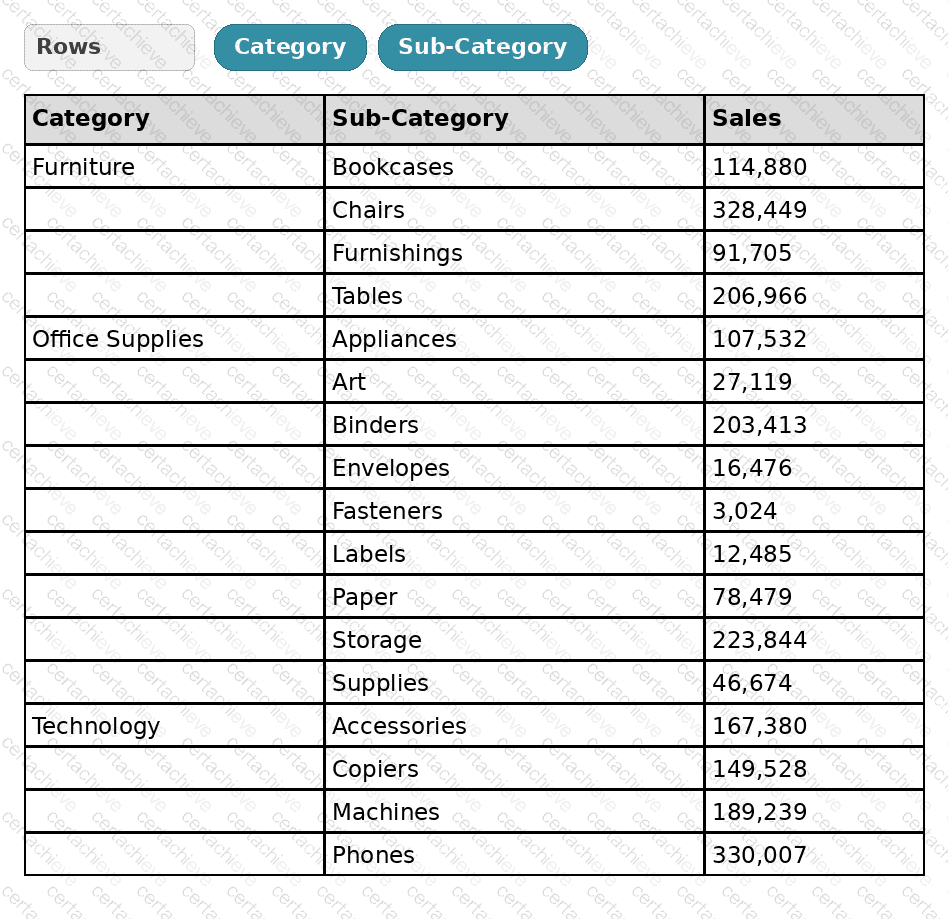
The analyst needs to add totals to the table as shown in the following visualization.
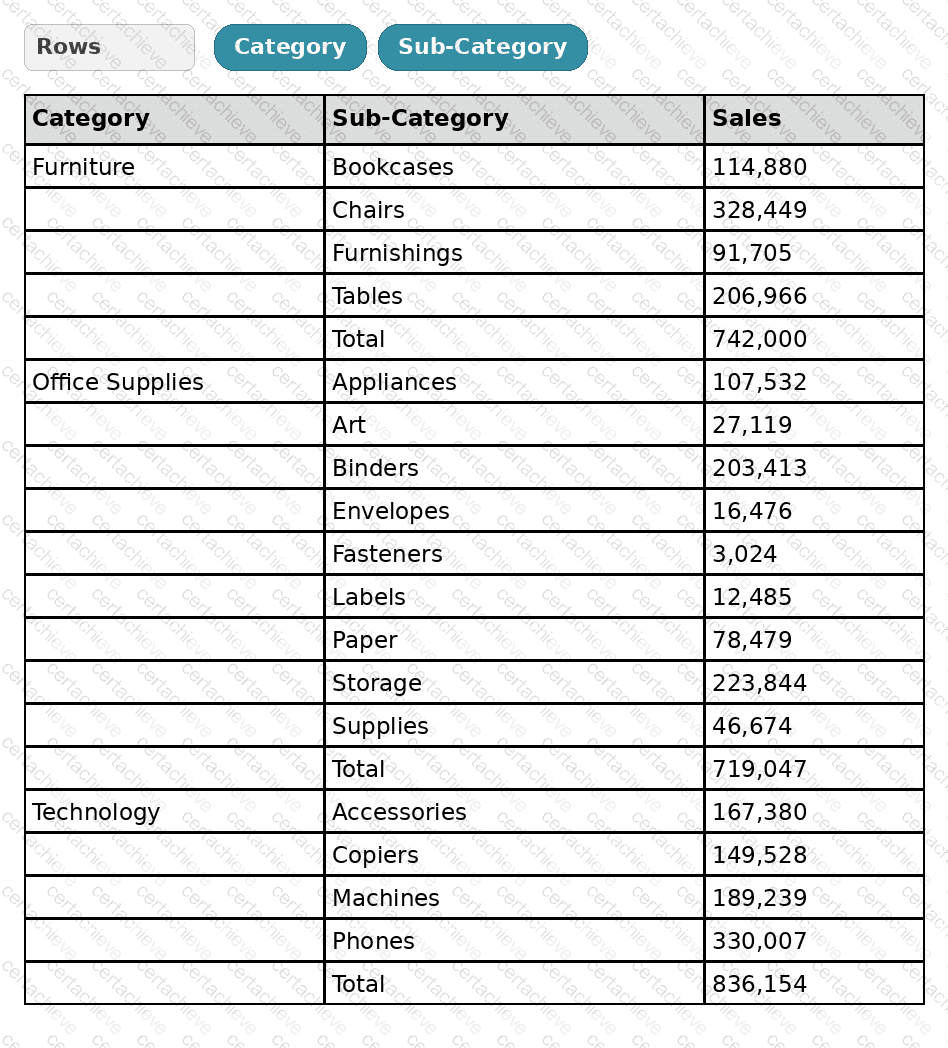
What should the analyst use from Totals on the Analysis menu?
Correct Answer & Rationale:
Answer: D
Explanation:
The target visualization shows a subtotal after the members of each Category while retaining the individual Sub-Category rows. In Tableau, Analysis > Totals > Add All Subtotals inserts subtotal rows or columns when multiple dimensions are present on Rows or Columns. Here, Category and Sub-Category are both on Rows, so Tableau can calculate a subtotal for each Category group. Show Column Grand Totals and Show Row Grand Totals create totals for the entire view along the corresponding direction; they do not insert a separate total inside every Category section. Column Totals to Top only changes the placement of existing column totals. Because the requirement is to add a Total row for Furniture, Office Supplies, and Technology individually, Add All Subtotals is the correct command.
Question 7
Salesforce Analytics-DA-201
QUESTION DESCRIPTION:
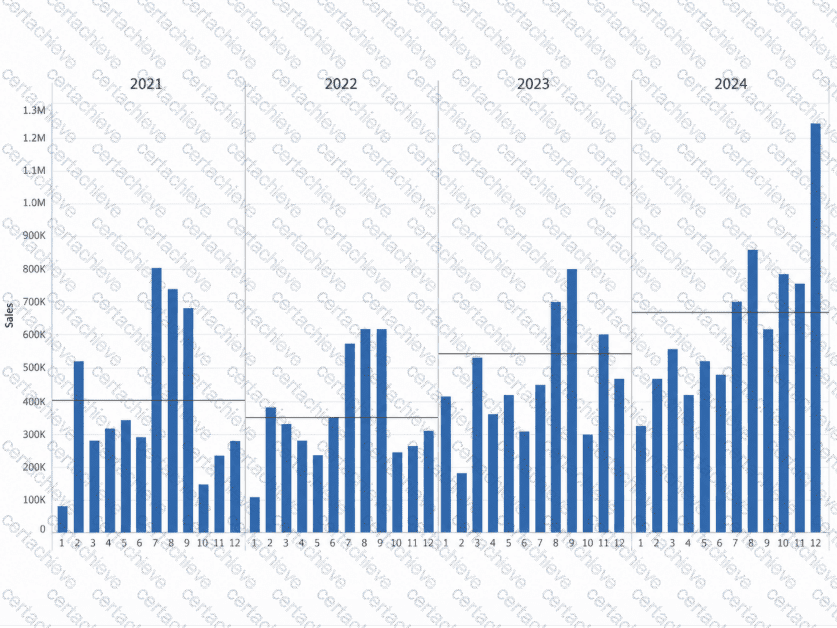
How should a Data Analyst configure the reference lines so that they appear as shown in the following chart?
Correct Answer & Rationale:
Answer: C
Explanation:
The chart is partitioned into separate panes by year, and each pane contains its own horizontal reference line based on the values within that pane. Therefore, the reference-line Scope must be set to Pane , which instructs Tableau to calculate and draw a separate line for each pane rather than a single line across the entire table. The line also represents a computed mean rather than a fixed numeric threshold, so the aggregation must be Average . Tableau ' s official documentation states that Table, Pane, and Cell determine the scope of a reference line, while Average places the line at the average value along the applicable axis. A Table-scoped average would produce one overall line, and a Constant would use a manually specified value rather than recalculating per pane.
Question 8
Salesforce Analytics-DA-201
QUESTION DESCRIPTION:
When using Tableau Desktop to connect to a published data source on Tableau Cloud or Tableau Server, which data sources will be displayed to the user?
Correct Answer & Rationale:
Answer: C
Explanation:
For a published Tableau data source, the Connect capability controls whether a user can connect to that data source from Tableau Desktop and use it for analysis. Tableau permissions also determine whether the content is visible within the site and project hierarchy, but among the choices, Connect is the capability specifically associated with making a usable published data source available for connection. Certification does not restrict the list to certified sources only, and ownership is not required; users can connect to data sources created by other publishers when permissions allow it. A user’s home directory is not the governing scope for published Tableau data sources. Therefore, the correct choice is the data sources for which the user has the required Connect permission, subject to normal site and content visibility permissions.
Question 9
Salesforce Analytics-DA-201
QUESTION DESCRIPTION:
A Data Analyst is frequently asked to report on events that have a single row per day but may have missing days in the dataset. The analyst needs to fill the gaps in the data between two dates.
What should the analyst use to do this in Tableau Prep?
Correct Answer & Rationale:
Answer: C
Explanation:
Tableau Prep provides a New Rows step specifically for filling gaps in sequential numeric or date data. When a dataset should contain one record per day but some dates are absent, New Rows can generate the missing date records between existing dates or within a defined range. The analyst can set the increment to one day and choose how other fields in the generated records are populated, such as Null, zero, or values copied from the previous row. Union combines rows from separate tables, Pivot reshapes columns and rows, and Aggregate changes the level of detail by grouping records. None of those operations is designed to manufacture missing dates in a sequence. Therefore, New Rows is the correct Tableau Prep operation for this requirement.
Question 10
Salesforce Analytics-DA-201
QUESTION DESCRIPTION:
You want to create the following table in a view.
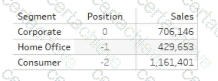
Which function should you use to create the Position column?
Correct Answer & Rationale:
Answer: B
Explanation:
To create the Position column, you should use the FIRST () function. The FIRST () function returns the number of rows from the current row to the first row in the partition. For example, the first row in a partition will return 0, the second row will return -1, and so on. In this question, the partition is defined by the Segment field, and the table is sorted by the Sales field in descending order. Therefore, the Position column shows the offset of each row from the first row in each segment, based on the sales ranking. References:
Tableau Certified Data Analyst Exam Prep Guide , page 11, section “Creating Calculated Fields”
Tableau Help: FIRST Function

Verified by Certified Instructors
This Salesforce Analytics-DA-201 study pack was audited and verified on September 23, 2026 by Hilary Beaumont,. We ensure every technical rationale aligns with real-world enterprise standards.
A Stepping Stone for Enhanced Career Opportunities
Your profile having Tableau Data Analyst certification significantly enhances your credibility and marketability in all corners of the world. The best part is that your formal recognition pays you in terms of tangible career advancement. It helps you perform your desired job roles accompanied by a substantial increase in your regular income. Beyond the resume, your expertise imparts you confidence to act as a dependable professional to solve real-world business challenges.
Your success in Salesforce Analytics-DA-201 certification exam makes your visible and relevant in the fast-evolving tech landscape. It proves a lifelong investment in your career that give you not only a competitive advantage over your non-certified peers but also makes you eligible for a further relevant exams in your domain.
What You Need to Ace Salesforce Exam Analytics-DA-201
Achieving success in the Analytics-DA-201 Salesforce exam requires a blending of clear understanding of all the exam topics, practical skills, and practice of the actual format. There's no room for cramming information, memorizing facts or dependence on a few significant exam topics. It means your readiness for exam needs you develop a comprehensive grasp on the syllabus that includes theoretical as well as practical command.
Here is a comprehensive strategy layout to secure peak performance in Analytics-DA-201 certification exam:
- Develop a rock-solid theoretical clarity of the exam topics
- Begin with easier and more familiar topics of the exam syllabus
- Make sure your command on the fundamental concepts
- Focus your attention to understand why that matters
- Ensure hands-on practice as the exam tests your ability to apply knowledge
- Develop a study routine managing time because it can be a major time-sink if you are slow
- Find out a comprehensive and streamlined study resource for your help
Ensuring Outstanding Results in Exam Analytics-DA-201!
In the backdrop of the above prep strategy for Analytics-DA-201 Salesforce exam, your primary need is to find out a comprehensive study resource. It could otherwise be a daunting task to achieve exam success. The most important factor that must be kep in mind is make sure your reliance on a one particular resource instead of depending on multiple sources. It should be an all-inclusive resource that ensures conceptual explanations, hands-on practical exercises, and realistic assessment tools.
Certachieve: A Reliable All-inclusive Study Resource
Certachieve offers multiple study tools to do thorough and rewarding Analytics-DA-201 exam prep. Here's an overview of Certachieve's toolkit:
Salesforce Analytics-DA-201 PDF Study Guide
This premium guide contains a number of Salesforce Analytics-DA-201 exam questions and answers that give you a full coverage of the exam syllabus in easy language. The information provided efficiently guides the candidate's focus to the most critical topics. The supportive explanations and examples build both the knowledge and the practical confidence of the exam candidates required to confidently pass the exam. The demo of Salesforce Analytics-DA-201 study guide pdf free download is also available to examine the contents and quality of the study material.
Salesforce Analytics-DA-201 Practice Exams
Practicing the exam Analytics-DA-201 questions is one of the essential requirements of your exam preparation. To help you with this important task, Certachieve introduces Salesforce Analytics-DA-201 Testing Engine to simulate multiple real exam-like tests. They are of enormous value for developing your grasp and understanding your strengths and weaknesses in exam preparation and make up deficiencies in time.
These comprehensive materials are engineered to streamline your preparation process, providing a direct and efficient path to mastering the exam's requirements.
Salesforce Analytics-DA-201 exam dumps
These realistic dumps include the most significant questions that may be the part of your upcoming exam. Learning Analytics-DA-201 exam dumps can increase not only your chances of success but can also award you an outstanding score.
Top Exams & Certification Providers
New & Trending
- New Released Exams
- Related Exam
- Hot Vendor